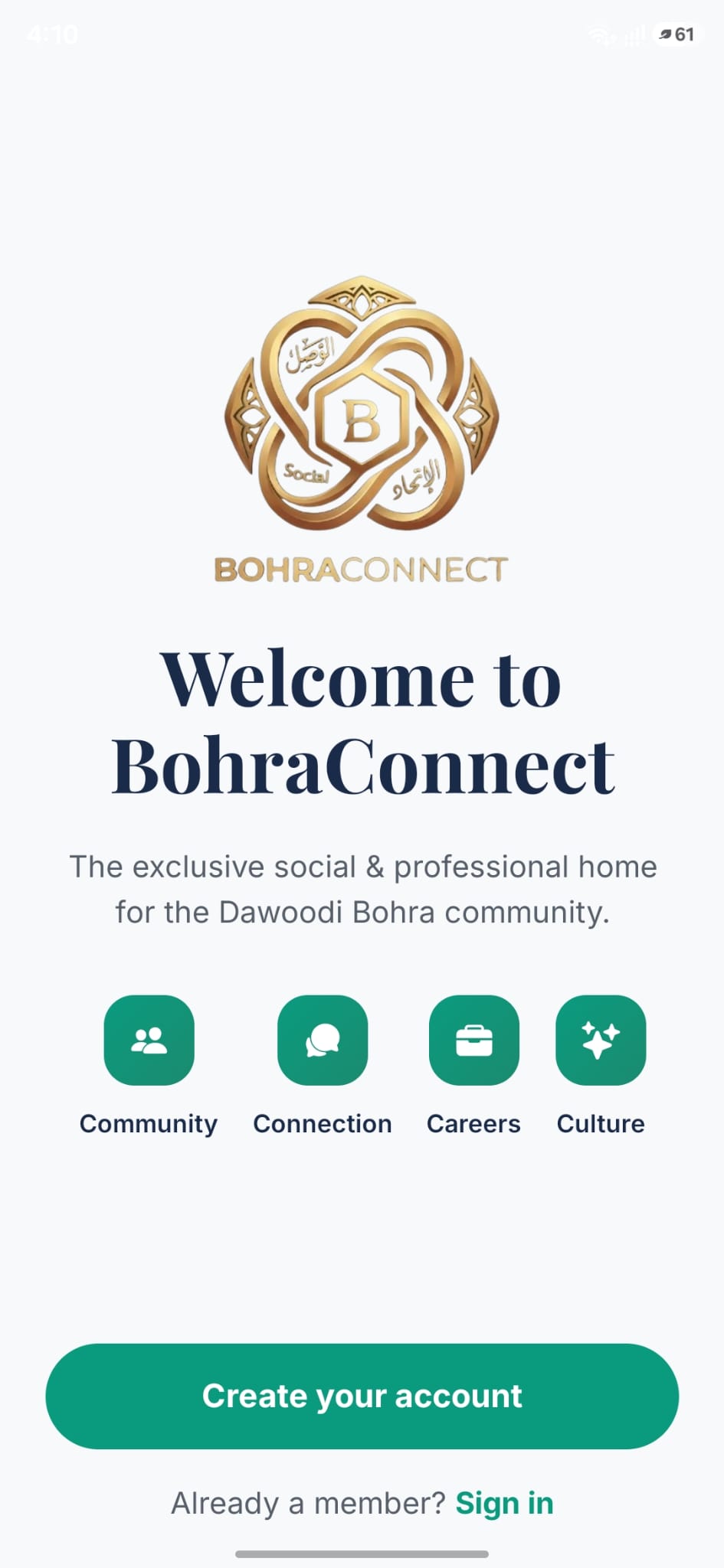
BohraConnect welcome screen
Step 1

Create your account

Open the app and you'll land on the welcome screen — your exclusive social & professional home for the Dawoodi Bohra community, built around four pillars: Community, Connection, Careers and Culture.
  • Tap Create your account to sign up with your email or Google.
  • Already a member? Tap Sign in at the bottom.
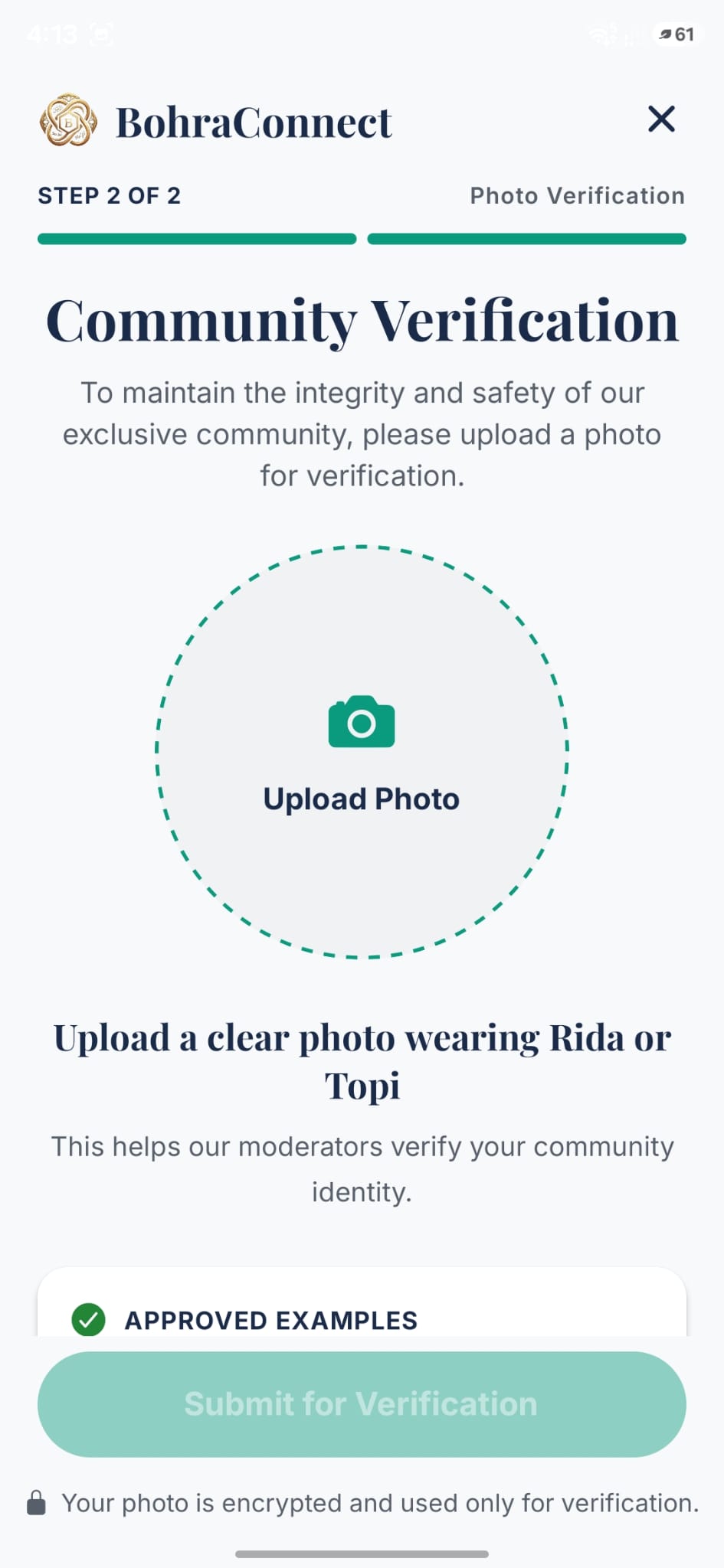
Community verification screen
Step 2

Verify you're part of the community

BohraConnect is members-only. In step 2 of sign-up you upload one photo so our moderators can confirm your community identity.
  • Tap the circle to Upload a clear photo wearing Rida or Topi.
  • Check the Approved examples if you're unsure what works.
  • Tap Submit for Verification — your photo is encrypted and used only for this check.
Home feed with stories and Mabrook posts
Step 3

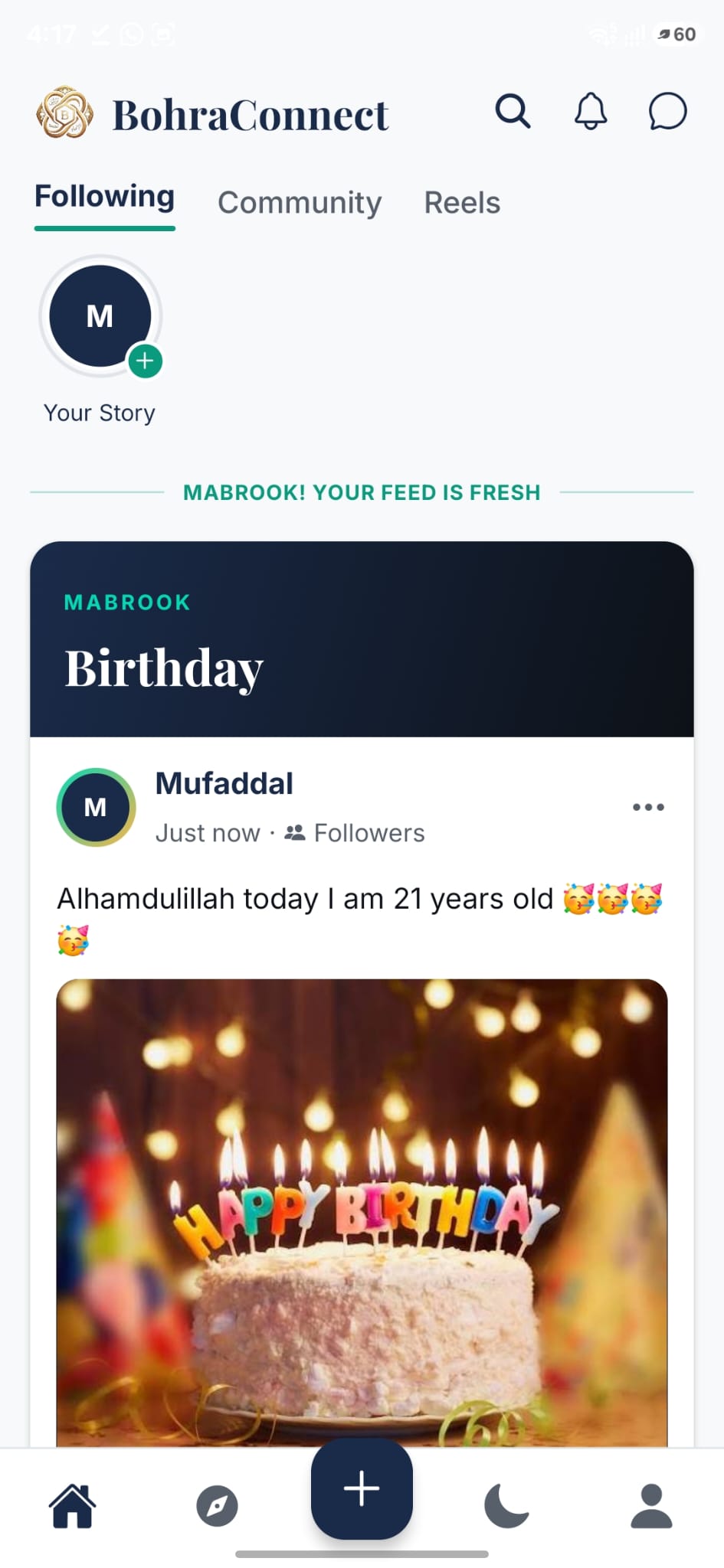
Your home feed

Once verified, home is where the community lives. Switch between Following (people you follow), Community (everyone) and Reels at the top.
  • Tap Your Story to share a moment that lasts 24 hours.
  • Life events like birthdays appear as special Mabrook cards.
  • Use the bottom bar: Home, Explore, the + button to post, the moon to switch mode, and your Profile.
Explore screen with hubs and trending tags
Step 4

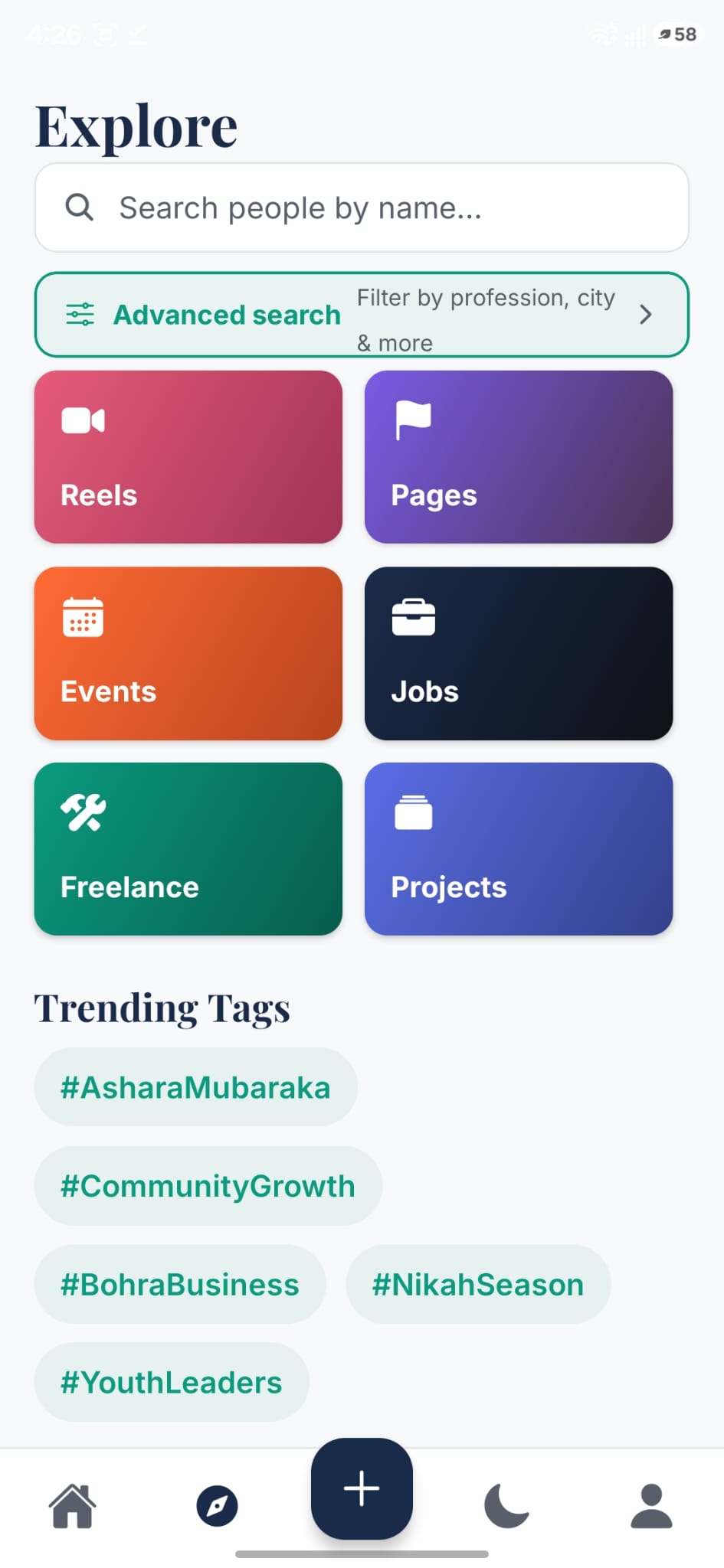
Explore the community

The Explore tab is your gateway to everything beyond your feed.
  • Search people by name, or use Advanced search to filter by profession, city & more.
  • Jump into hubs: Reels, Pages, Events, Jobs, Freelance and Projects.
  • Follow Trending Tags like #AsharaMubaraka and #BohraBusiness to see what the community is talking about.
Events screen with Hijri calendar
Step 5

Events on the Bohra calendar

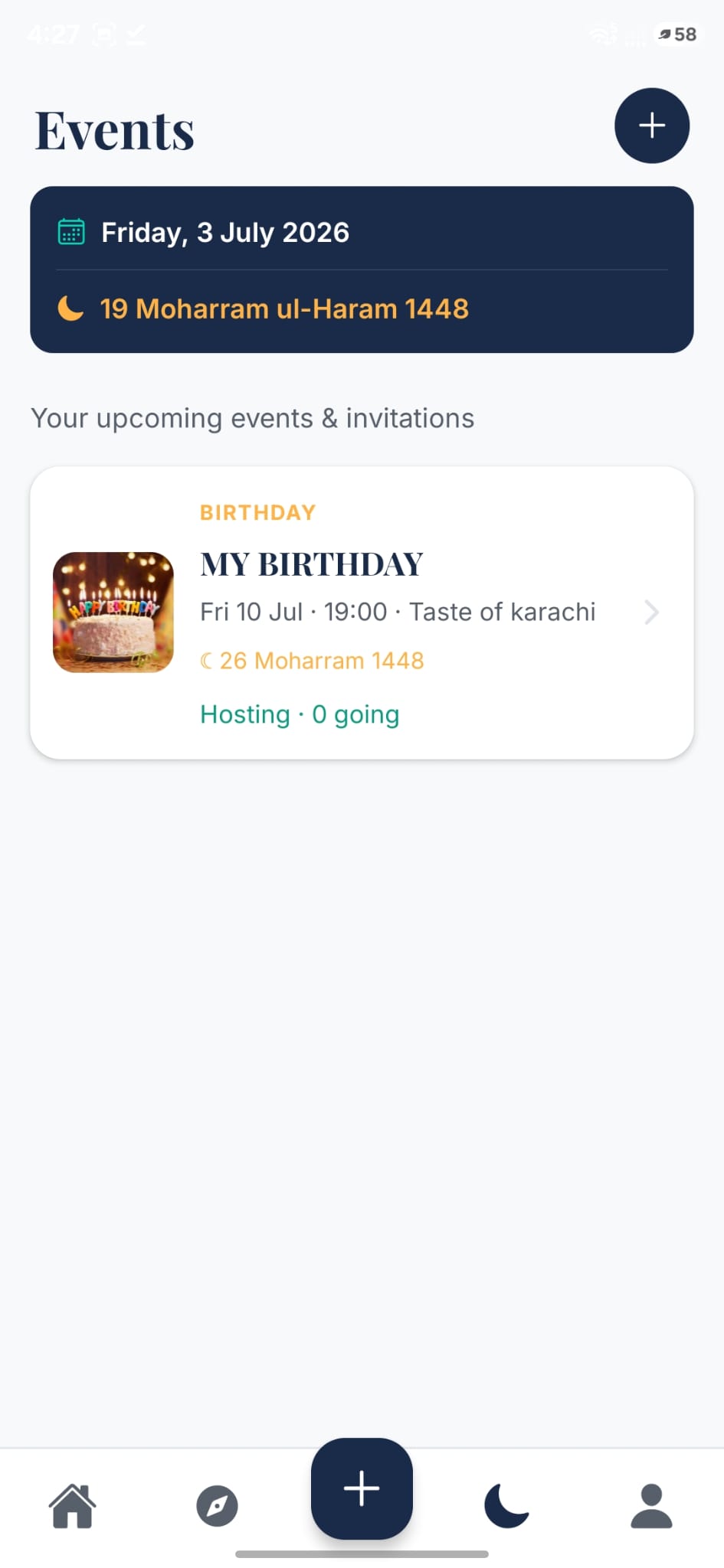
The Events screen shows today's date in both Gregorian and Misri (Hijri) — so you always know it's 19 Moharram ul-Haram before you plan anything.
  • Your upcoming events & invitations are listed with time, venue and Hijri date.
  • Tap + in the corner to host your own event.
  • Each card shows your role — Hosting — and how many guests are going.
Event detail with guest list and RSVPs
Step 6

Invite guests & track RSVPs

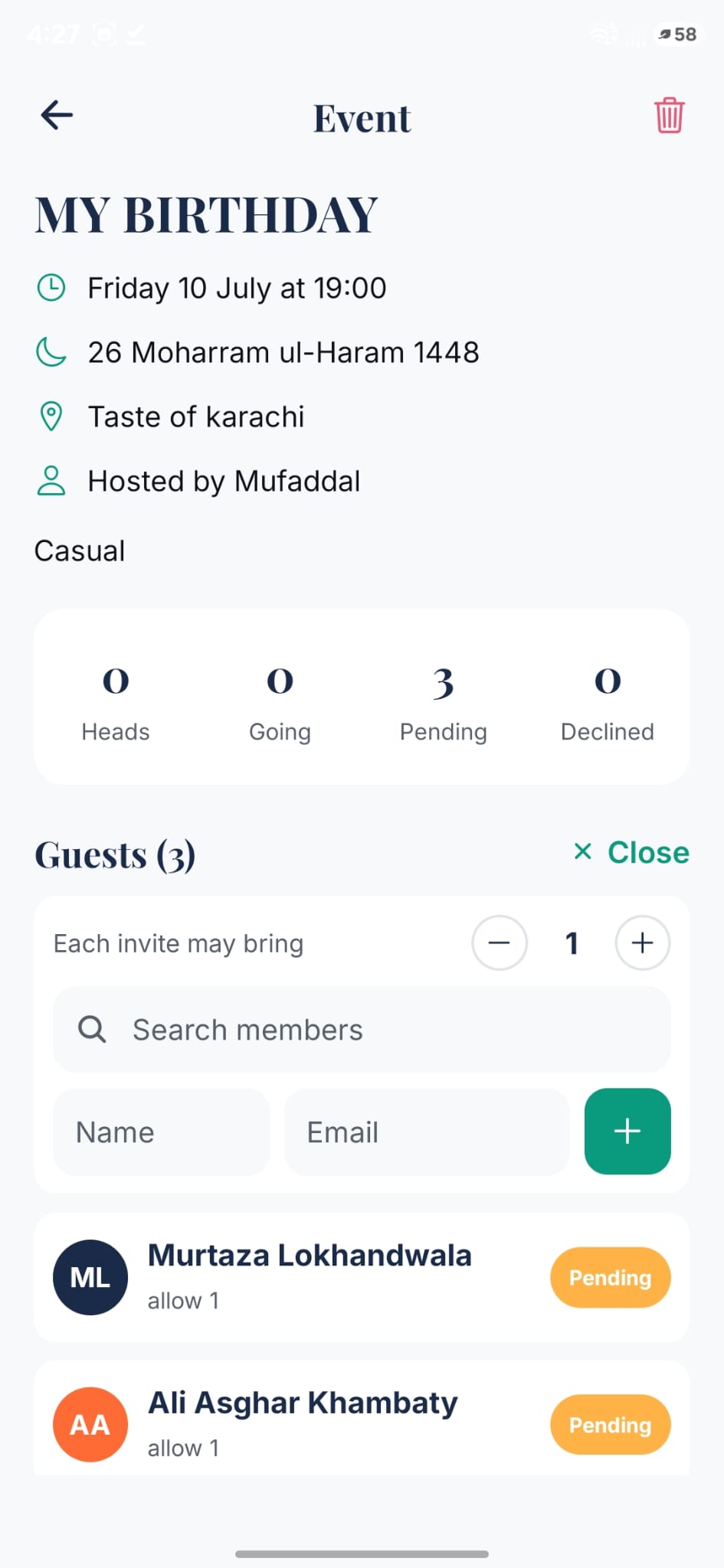
Inside an event you manage everything: date, venue, dress code and the guest list — invite-only, the Bohra way.

  • Watch RSVPs live: Heads · Going · Pending · Declined.
  • Set how many companions each invite may bring.
  • Invite members by searching their name, or add outside guests by name & email.
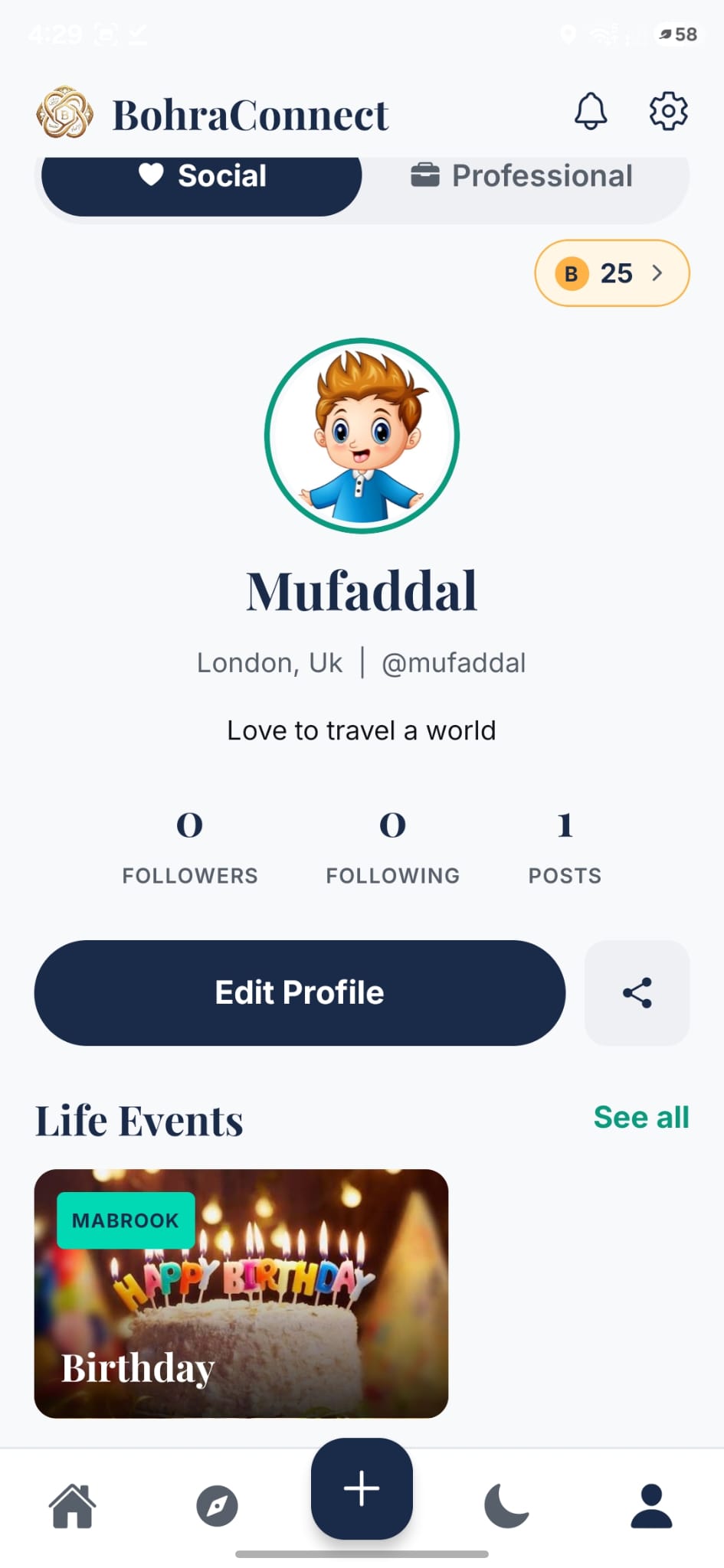
Social profile with B-Coin balance
Step 7

Your Social profile

Your profile has two faces. In Social mode it's about you and your circle — followers, posts, stories and life events.
  • The gold B chip is your B-Coin balance — earned by being active in the community.
  • Life Events like your birthday get their own Mabrook cards.
  • Tap Edit Profile to update your photo, bio and city, or the share icon to invite others.
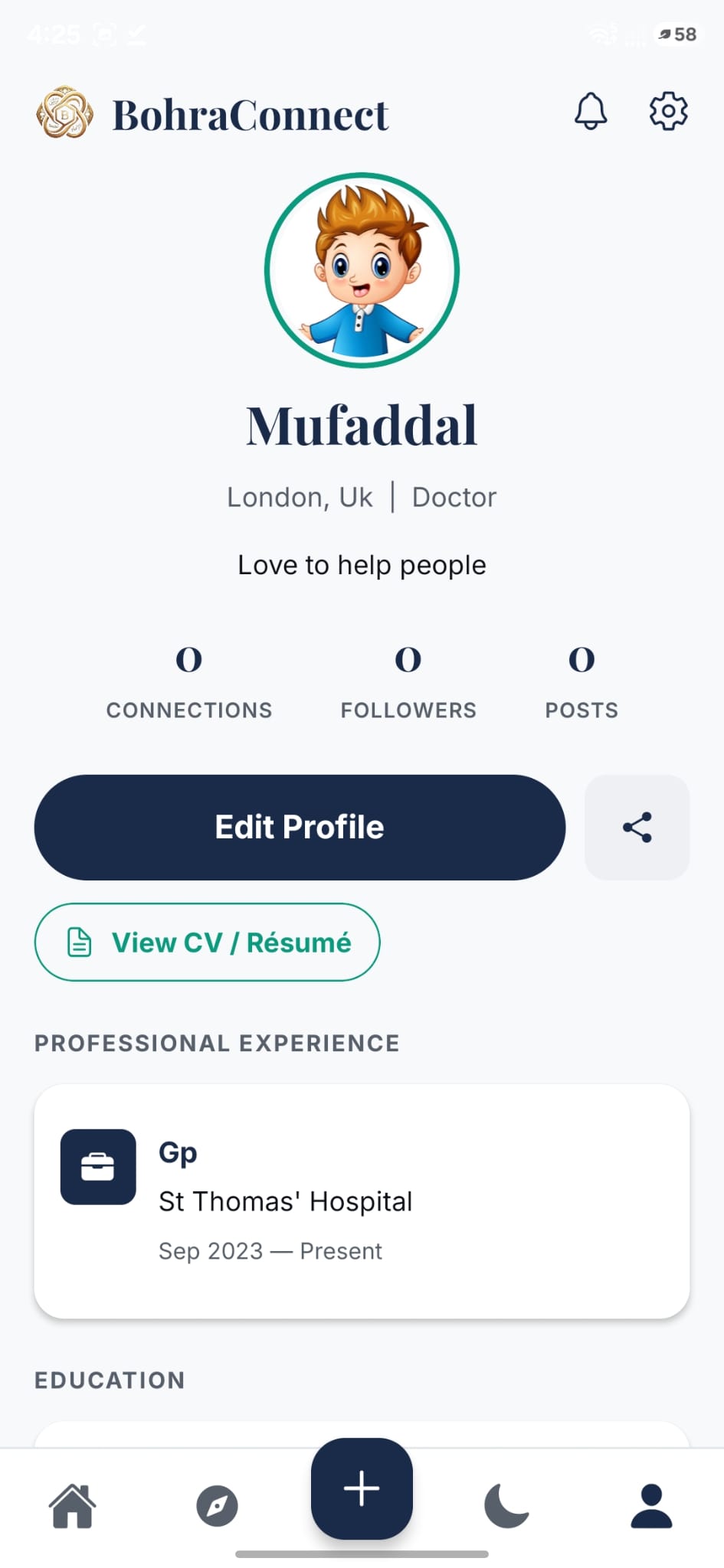
Professional profile with CV and experience
Step 8

Flip to Professional

Tap the moon in the bottom bar (or the toggle on your profile) and the same app becomes your career home — separate feed, separate DMs, same account.

  • Showcase your Professional Experience and Education.
  • Attach a CV / Résumé others can view when you apply for jobs.
  • Grow Connections — the professional counterpart to followers.

That's it — you're ready.

Join thousands of mumineen connecting socially and professionally.

Get the app